 FoxDoo Technology
TL;DR
The best AI email assistant for most small teams in 2026 is usually the one that fits their existing email stack: Gmail with Gemini for Google Workspace teams and Outlook with Copilot for Microsoft 365 teams. If inbox speed is the main problem, consider Shortwave or Superhuman AI. If your team manages shared client or support inboxes, Missive AI is often a stronger operational fit.
The safest way to reach inbox zero is not to let AI send messages automatically on day one. Start with summaries, triage, labels, and draft-only replies. Then connect approved action items to your task manager, CRM, or automation platform after the team has reviewed accuracy.
Direct Answer: What Is the Best AI Email Assistant in 2026?
For most small teams, the best AI email assistant in 2026 is:
- Gmail + Gemini if your team already runs on Google Workspace.
- Outlook + Microsoft Copilot if your team already runs on Microsoft 365.
- Shortwave if a founder, operator, or heavy email user wants faster inbox triage.
- Superhuman AI if speed, polish, keyboard workflow, and premium daily email routines matter.
- Missive AI if an agency, support team, or operations team needs shared inbox collaboration.
- Zapier, Make, or n8n workflows if the main issue is converting emails into tasks, CRM updates, support tickets, or follow-up reminders.
The practical answer is not “choose the tool with the longest feature list.” Choose the tool that reduces triage time, improves reply quality, and keeps a human in control of important client-facing messages.
Why AI Email Assistants Matter for Small Teams
Email is still where sales leads, support issues, billing questions, partner requests, candidate messages, and internal approvals collide. For small teams, that creates three problems:
- Triage overload: Important emails get buried under newsletters, notifications, and low-priority threads.
- Context switching: Operators waste time reading long threads just to understand the next step.
- Follow-up leakage: Good opportunities and customer issues go stale because nobody owns the next action.
AI email assistants can help, but only if they are deployed as a workflow layer, not as a magic auto-reply machine. A useful assistant should summarize long threads, suggest responses, identify follow-ups, and route action items into the right system.
For small teams and agencies, the goal is not “zero emails forever.” The goal is a controlled inbox where every important message is either answered, assigned, scheduled, delegated, or archived.
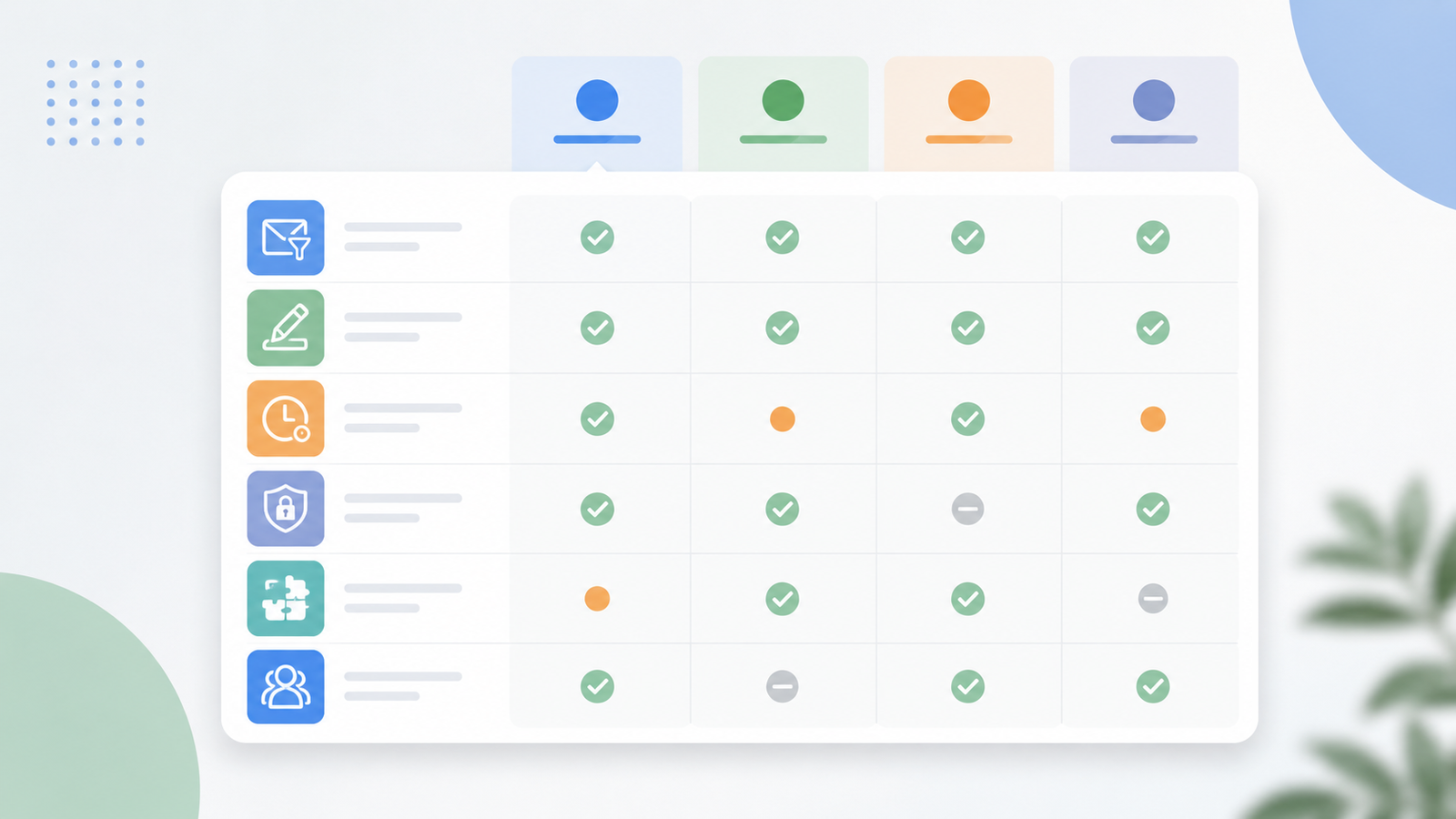
Comparison Table: Best AI Email Assistants for Small Teams
| Tool / Category | Best For | Strengths | Watchouts | Best First Workflow |
|---|---|---|---|---|
| Gmail + Gemini | Google Workspace teams | Native Gmail workflow, draft help, thread context, low switching cost | Depends on Workspace plan and admin settings | Summarize long client threads and draft replies for review |
| Outlook + Copilot | Microsoft 365 teams | Strong fit with Outlook, Teams, calendar, and Microsoft documents | Best value appears when the team already lives in Microsoft 365 | Summarize email threads and prepare meeting follow-ups |
| Shortwave | Founders and operators | Fast inbox triage, AI summaries, bundles, speed-focused workflow | Best for teams comfortable adopting a new email experience | Turn a messy inbox into grouped priorities and draft responses |
| Superhuman AI | Heavy email users | Premium speed, keyboard workflow, polished AI writing support | Higher cost; may be overkill for light email users | Build a daily email routine for high-volume individual contributors |
| Missive AI | Agencies and shared inboxes | Collaboration, assignments, internal comments, shared inbox ownership | Needs team process discipline | Assign client emails and draft approved replies collaboratively |
| Zapier / Make / n8n email workflows | Technical operators and automation teams | Connect email to task tools, CRMs, support desks, and databases | Bad automations can create noise or incorrect routing | Convert approved emails into tasks, CRM records, or follow-up reminders |
How to Evaluate an AI Email Assistant
1. Triage Accuracy
A good AI email assistant should identify what matters without hiding urgent messages. Look for features such as priority inboxes, smart bundles, sender recognition, thread summaries, and follow-up detection.
For small teams, triage accuracy is more important than flashy writing. If the assistant cannot reliably separate client issues, sales opportunities, billing requests, and internal chatter, it will not produce real inbox zero.
2. Thread Summaries
Long email threads waste time because the next step is often buried in a chain of replies. The assistant should summarize:
- who is involved,
- what has been decided,
- what is still unresolved,
- who owns the next action,
- and whether there is a deadline.
This is especially valuable for agencies and service teams that inherit context from multiple client stakeholders.
3. Draft Control
AI drafting is useful only when the team can control tone, length, and confidence. A practical assistant should let users rewrite a draft as concise, friendly, formal, technical, or action-oriented.
Avoid workflows where the AI sends messages without review. Even a small tone mistake can damage a client relationship, especially in support, billing, sales, or account management.
4. Shared Inbox Collaboration
If more than one person handles the inbox, collaboration matters more than individual productivity. Look for assignments, internal comments, collision detection, team visibility, and clear ownership.
This is where tools like Missive can be more useful than a single-user AI email client. Agencies and support teams need to know who is replying, who is waiting, and what has been escalated.
5. Integrations With Tasks, CRM, and Calendar
Inbox zero fails when emails are archived before the next step is captured. Your assistant should connect to the systems where work actually happens:
- task managers,
- project management tools,
- CRMs,
- calendars,
- support desks,
- internal documentation.
If the email tool does not handle this well natively, use an automation layer. FoxDoo’s comparison of Zapier vs Make vs n8n in 2026 can help you choose the right automation platform for email workflows.
6. Privacy and Admin Controls
Small teams should check where data is processed, what admins can control, how retention works, and whether sensitive emails are used for model training. This is especially important for legal, finance, healthcare-adjacent, HR, or client-confidential workflows.
If you cannot answer those questions clearly, start with low-risk use cases: summaries, internal drafts, and non-sensitive follow-up reminders.
Best AI Email Assistants by Use Case
Best Default for Google Workspace Teams: Gmail + Gemini
For teams already using Google Workspace, Gmail with Gemini is often the easiest starting point. There is no separate inbox migration, the learning curve is lower, and users can keep working inside Gmail.
Use it for:
- summarizing long threads,
- drafting replies,
- rewriting tone,
- extracting next steps,
- preparing follow-up messages.
The main advantage is adoption. If your team already lives in Gmail, a native assistant is less disruptive than moving everyone into a new email client.
Best Default for Microsoft 365 Teams: Outlook + Copilot
For Microsoft 365 teams, Outlook with Copilot is the natural first option. It becomes more useful when the team also uses Teams, Word, Excel, OneDrive, and Microsoft calendar workflows.
Use it for:
- summarizing long Outlook threads,
- drafting professional replies,
- preparing meeting follow-ups,
- connecting email context with Microsoft documents,
- reducing manual handoffs between email and calendar.
The practical question is whether your team already depends on the Microsoft ecosystem. If yes, Copilot can reduce switching costs. If not, it may be too much platform overhead for a simple inbox workflow.
Best for Fast Operator Inbox Triage: Shortwave
Shortwave is a strong fit for founders, operators, and individual contributors who want a faster, more organized inbox. Its strength is turning email into a more manageable productivity stream with summaries, bundles, and speed-focused interaction.
Use it when:
- your inbox is high volume,
- you want faster thread understanding,
- you need smart grouping,
- and you are comfortable adopting a more opinionated email workflow.
Shortwave is less about enterprise process and more about personal operational speed.
Best Premium Workflow for Heavy Email Users: Superhuman AI
Superhuman remains a premium option for people who live in email. Its core value is speed, keyboard workflow, and a polished routine for processing messages quickly.
Use it when:
- email is a major part of your job,
- speed matters every day,
- you want a refined writing and triage experience,
- and the cost is justified by saved time.
For light email users, it may be overkill. For executives, sales leads, founders, recruiters, or account managers, the time savings can be easier to justify.
Best for Shared Inbox Collaboration: Missive AI
Missive is especially useful when email is a team sport. Agencies, support teams, operations teams, and client-service teams often need assignments, internal comments, and visibility into who owns each thread.
Use it when:
- multiple people reply from the same inbox,
- client context must be shared,
- internal comments matter,
- and unanswered emails need clear ownership.
Missive AI can help draft replies and summarize threads, but the real value is combining AI assistance with team accountability.
Best Automation Layer: Zapier, Make, or n8n
Sometimes the best “AI email assistant” is not a standalone inbox tool. It is an automation workflow around your inbox.
Examples:
- When an email from a key client arrives, create a task and notify the account owner.
- When a lead form email arrives, add a CRM record and draft a first response.
- When a billing email arrives, label it and route it to finance.
- When a support issue contains certain keywords, create a ticket and summarize the thread.
Automation is powerful, but it must be conservative. Start with draft-only or create-task-only workflows before allowing any external reply. For more automation guidance, see FoxDoo’s small-team automation workflows hub.
A 30-Minute AI Inbox Zero Setup Workflow
Step 1: Choose One Inbox
Do not automate every mailbox at once. Pick one of these:
- founder inbox,
- sales inbox,
- support inbox,
- client account inbox,
- billing inbox.
The first workflow should be narrow enough that the team can review mistakes.
Step 2: Define Five Labels
Start with simple labels:
- Lead,
- Support,
- Billing,
- Internal,
- Follow-up.
The labels should match real actions, not abstract categories. If a label does not change what happens next, it is probably unnecessary.
Step 3: Enable Summaries and Draft Assist Only
In the first week, use AI for:
- summarizing long threads,
- drafting suggested replies,
- rewriting tone,
- extracting next steps,
- identifying unanswered questions.
Do not enable auto-send. The goal is to reduce effort while preserving human judgment.
Step 4: Connect Approved Actions to Tasks or CRM
Once summaries and labels are reliable, connect email to execution:
- client request → project task,
- sales inquiry → CRM lead,
- support issue → helpdesk ticket,
- meeting follow-up → calendar/task reminder,
- invoice question → finance queue.
This is where AI email becomes operationally useful. Inbox zero is not real if work disappears after the email is archived.
Step 5: Review False Positives Weekly
Every week, review:
- emails labeled incorrectly,
- weak AI drafts,
- missed follow-ups,
- unnecessary notifications,
- sensitive messages that should not enter AI workflows.
This review loop is what makes the system safer over time.
Best Practices for Agencies and Client-Service Teams
Agencies should be extra careful with AI email because tone and client context matter. A good first setup is:
- AI summarizes client threads.
- AI drafts a reply in the agency’s tone.
- The account manager reviews and edits the reply.
- Approved requests become project tasks.
- Follow-up reminders are created automatically.
Do not let AI send client emails independently until the workflow has a strong review history. Even then, limit autonomous actions to low-risk messages such as internal reminders or template-based confirmations.
If your agency also handles meeting notes, connect email follow-ups with AI meeting note takers for action-item capture. That creates a cleaner loop from meeting → summary → task → email follow-up.
Best Practices for Support and Shared Inbox Teams
Support teams should evaluate AI email assistants differently from individual users. The key question is not “Can it write a nice reply?” The key question is “Can the team maintain ownership and escalation?”
Look for:
- clear assignment rules,
- internal comments,
- escalation triggers,
- customer history visibility,
- templates for common issues,
- safeguards for billing, refunds, and complaints.
If the inbox receives customer issues, compare email workflows with dedicated AI customer support tools for shared inbox and ticket workflows. A support platform may be a better fit than a general email assistant once volume grows.
Common Mistakes to Avoid
Mistake 1: Turning On Too Much Automation Too Soon
The fastest way to break trust is to let AI send the wrong message to a client. Start with assistive workflows first.
Mistake 2: Choosing a Tool Without Mapping the Workflow
Before choosing software, map where email work goes next. Does it become a task, CRM note, support ticket, calendar event, or internal decision?
Mistake 3: Ignoring Shared Inbox Ownership
If everyone owns the inbox, nobody owns the inbox. Use assignments and follow-up rules.
Mistake 4: Treating Privacy as an Afterthought
Do not send sensitive client, legal, HR, or financial information into an AI workflow until the team understands admin controls and data handling.
Mistake 5: Measuring Replies Instead of Resolved Work
The metric is not “more replies sent.” Better metrics include faster triage, fewer missed follow-ups, shorter response time, and fewer unresolved threads.
Recommended Stack by Team Type
Small Google Workspace Team
Start with Gmail + Gemini. Add lightweight automation only after the team has stable labels and review habits.
Small Microsoft 365 Team
Start with Outlook + Copilot. Use it alongside calendar and Teams workflows for summaries and follow-ups.
Founder or Solo Operator
Try Shortwave or Superhuman AI if speed is the main bottleneck. Focus on daily inbox review, summaries, and follow-up reminders.
Agency or Client-Service Team
Use Missive AI or a shared inbox platform. Connect approved client requests to project tasks and meeting notes.
Technical Operations Team
Use Gmail, Outlook, or a shared inbox as the front end, then connect approved workflows through Zapier, Make, or n8n. Keep sensitive or high-impact actions human-reviewed.
Where Email AI Fits in a Small-Team AI Stack
Email is still one of the easiest places for a small team to lose time. The right AI email assistant should reduce inbox noise, draft routine replies, summarize long threads, and turn follow-up promises into tasks without taking over sensitive decisions.
For most small teams, email AI should connect to three workflows:
- Triage: identify urgent customers, sales opportunities, invoices, vendor issues, and messages that can wait.
- Drafting: prepare clear replies in the team’s tone while leaving final approval to a person.
- Follow-up: create reminders, CRM notes, project tasks, or status updates after a reply is sent.
Email AI works best as part of a broader stack. Use the best AI tools for small teams guide to choose the assistant and workspace layer, then connect inbox actions through an automation platform such as Zapier, Make, or n8n when the handoff becomes repeatable.
FAQ
What is the safest way to use AI email assistants?
The safest pattern is to let AI summarize, classify, and draft, while a human approves replies before they are sent. Keep approval especially strict for pricing, legal language, customer complaints, HR topics, finance, security issues, and anything that changes a customer record.
Can AI email assistants really help with inbox zero?
AI email assistants can help with inbox zero when they reduce decision fatigue: grouping similar messages, summarizing threads, suggesting next actions, and drafting routine responses. They do not replace a good inbox process, but they can make that process faster and easier to maintain.
Should email AI connect to project management tools?
Yes, but only for clear handoffs. Good examples include turning approved client requests into tasks, saving meeting follow-ups, creating reminders, or logging sales notes. Avoid automatically creating noisy tasks from every message; require rules, labels, or human approval.
What is the best AI email assistant for most small teams in 2026?
For most small teams, the best starting point is the AI assistant already inside their email suite: Gmail with Gemini for Google Workspace teams or Outlook with Copilot for Microsoft 365 teams. Dedicated tools like Shortwave, Superhuman, and Missive can be better when inbox speed, shared inbox workflows, or collaboration are the main problem.
Should small teams allow AI email tools to send replies automatically?
Usually no. A safer rollout is to use AI for summarization, triage, and draft replies first, then require a human review before anything is sent. Autonomous sending should only be considered after the team has tested tone, false positives, escalation rules, and customer-impact risks.
Are AI email assistants useful for shared inboxes?
Yes, but shared inboxes need more structure. The assistant should support assignments, internal comments, visibility into who owns the next step, and clear rules for when messages become tasks or support tickets.
How should an agency use AI email automation?
Agencies should start with low-risk workflows: summarize long client threads, draft status replies, flag unanswered client questions, and turn approved requests into tasks. Avoid automatically replying to clients until account managers have reviewed the workflow.
What is the safest first workflow for AI inbox zero?
Start with summaries, labels, and draft-only responses. Add a weekly review of incorrect labels or weak drafts, then gradually connect approved action items to a task manager or CRM.
Can AI email assistants replace a CRM or support desk?
Usually no. AI email assistants can help process messages, but CRMs and support desks are still better for pipeline tracking, ownership, reporting, escalation, and customer history. For growing teams, the email assistant should feed those systems rather than replace them.
Bottom Line
The best AI email assistant in 2026 is the one that helps your team make faster, safer decisions inside the inbox. For most teams, start with Gmail Gemini or Outlook Copilot because they fit existing workflows. Use Shortwave or Superhuman AI when individual speed matters. Use Missive AI when shared inbox ownership matters.
For small teams, the winning setup is conservative: summarize, triage, draft, assign, and review. Once that system works, add automation to move approved work into tasks, CRM records, support tickets, and follow-up reminders.
Want a practical automation stack around your inbox? Start with FoxDoo Technology’s guide to Zapier vs Make vs n8n and build one safe email workflow before automating the whole inbox.